|
|
|
|
|
Toricxs Tour
|
|
|
|
|
|
Welcome to the Toricxs tour! I am Louis and I will demonstrate you what one could use Toricxs for. Yeeha! Let’s begin!
|
|
|
|
|
|
|
|
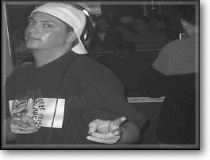
That’s Steve Baker (Ok, that’s Jack with a stupid baseball cap, but imagine it would be Steve).
Every day Steve faces his mp3 collection that looks really silly, and he wants to have it cleaned up, so that his property looks really good afterwards when his friends come.
|
|
|
|
|
|
|
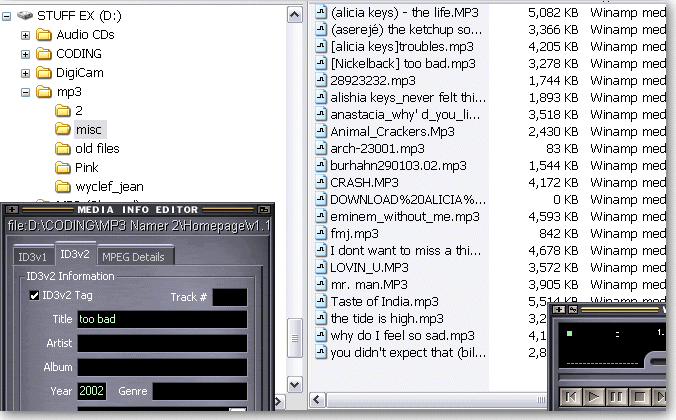
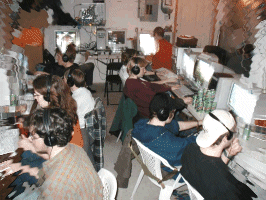
Here you see Steve’s collection:
|
|
|
|
|
|
Steve got his files from buddies and out of the Internet by p2p software. But still you cannot see that this is Steve’s collection, it just looks like data trash!
|
|
|
|
|
|
Files are spread all over meaningless sub directories. Files have names that are meaningless, too. There is no order, and you as the administrator of the collection do not have the power to make everything clear like it should righteously be.
|
|
|
|
|
|
‘Till now.
|
|
|
|
|
|
From now on YOU can take advantage of Toricxs to create a directory hierarchy and you can define how this hierarchy looks like.
|
|
|
|
|
|
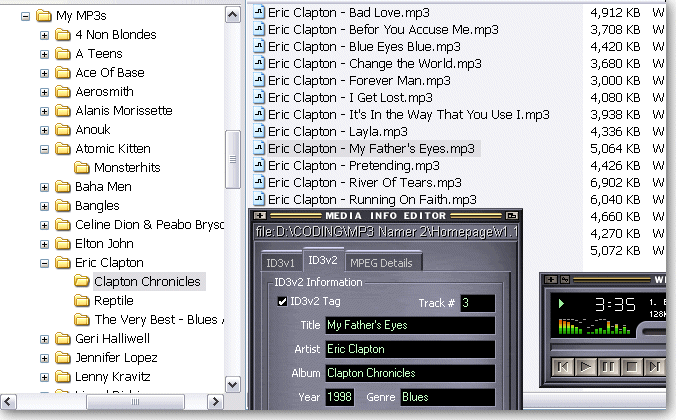
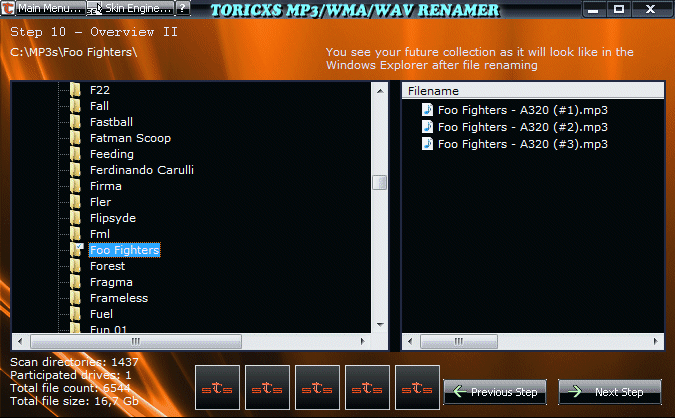
For instance, in the following example an mp3 collection was cleaned up, Toricxs was told to put the files into sub directories named like the files' artist and, one level below, like the files' album.
|
|
|
|
|
|
As you should see, the file’s v2 (and v1) TAG was written, too. In real life it is important to ‘read between the lines’, and so does Toricxs. If the old TAG (v1 or v2) was not set then the program will filter TAG data out of the file name, so that is is verified that there will be as much data in the TAG as possible to make you know what’s going on (when you play an mp3 file, for example).
|
|
|
|
|
|
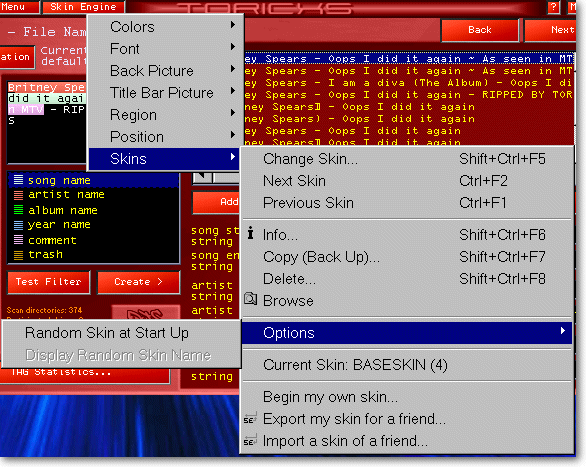
Toricxs includes a powerful skinning engine that allows you to make the program look like YOU want. Many programmers (and also their friends) will be envious of the great skins you can create per drag & drop. Take your own holiday- and party pictures and use them as background image. Change text- and background color with exactly 4 mouse clicks. Use custom fonts that are installed on your computer and create windows of any shape. Everything’s possible with Toricxs!
|
|
|
|
|
|
|
|
|
|
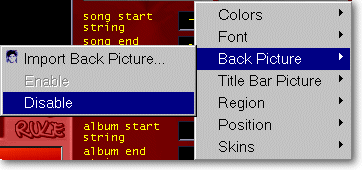
You can use any back- and title bar picture, for instance pictures from you or artworks out of the Internet.
|
|
|
|
|
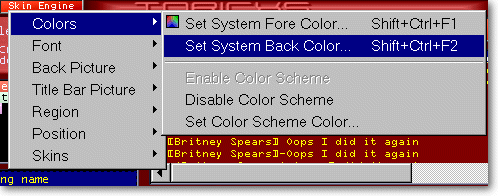
Bored of the current skin? Set all texts' fore- and back color, and ‘colorize’ the whole appearance using the color scheme. Voilà - your new skin!
|
|
|
|
|
|
|
You have many options for handling skins and you can export your self-made skin and serve it in the Internet.
|
|
|
|
|
|
|
|
Hey, and one thing I forgot:
When creating your own skin you can set any button’s location by dragging it around with the mouse. This is real skinning! But now I want to tell you more about the cleaning process...
|
|
|
|
|
|
|
Here you see some screen shots of Toricxs (with base skin):
|
|
|
|
|
|
This is the large list in step 9, where you can examine the previously auto-cleaned up TAG data.
|
|
|
|
|
|
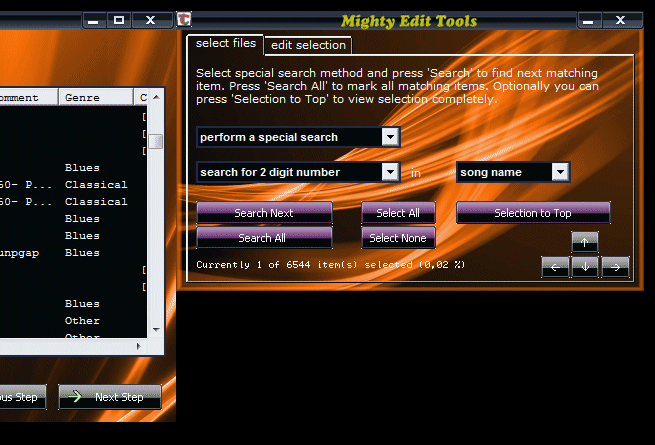
Here you see the Search ‘n’ Edit window that allows you to systematically seek and change data. That’s well usable for ‘copyrighting’ YOUR mp3/wma files before sharing, so that everyone in the Internet knows who you are.
|
|
|
|
|
|
|
|
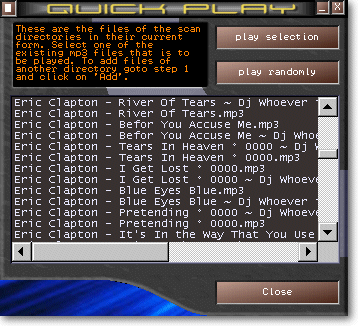
During the editing you can play any mp3 files of your collection with one double click (you can keep your current external player, e.g. Winamp, Toricxs will use this one). So if you want, you can also use Toricxs as a kind of media library to play your files (although Toricxs is mainly designed for cleaning up your music files).
|
|
|
|
|
|
|
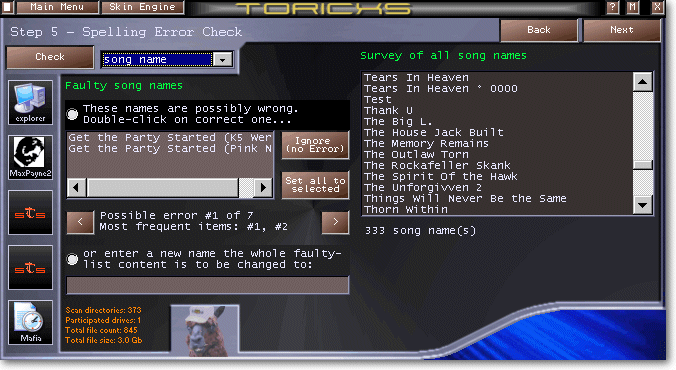
With Toricxs you can even check your song- and artist names for spelling errors, like you can see in the following example (more info in the help):
|
|
|
|
|
|
Before finally altering your mp3 files you have the opportunity to view and edit the result in the ‘Explorer-Preview’. Like in the Windows-Explorer you can change any file- and directory name. BUT NOTE: the Explorer won’t change the file’s TAG data together with the file name, Toricxs does! So when you change a file name then the TAG will automatically be assimilated.
|
|
|
|
|
|
Besidesthe cleaning-function Toricxs has also two features that makes purchasing mp3 files easier, that is the ‘LAN-Grabbing’ and the Music List File.
|
|
|
|
|
LAN-Grabbing is the expression for the process of collecting all shared wma/mp3/wav files within a LAN network. You just open Toricxs, click the ‘Mega-Scan (LAN-Grabbing)’-button, choose ‘search network’ and finally tell Toricxs to copy the found files to your hard disk. You then can edit the file’s TAG, define how the file should look like on YOUR hard disk and finally, when you give the permission, the files are copied to your hard disk and cleaned up.
|
|
|
|
|
|
|
|
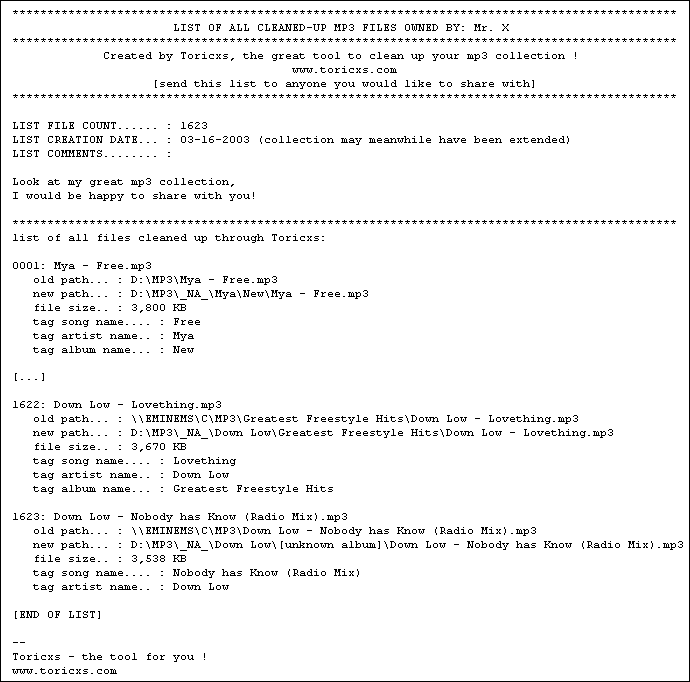
Imagine you want to share mp3 files, for instance with your friend in an other country. He or she wants to have some special songs, but does not know if you are able to serve them (if you even own them). To make her happy you can send her the Music List File. This file contains information about your music files, like the name, the size, artist, song name and much more. Furthermore you can include a greetings-text or self-made sharing rules. Three formats are available: txt, html and mdb. Here’s an example how the file could look like:
|
|
|
|
|
|
|
|
|
|
|
|
[list has been shortened to fit into this page]
|
|
|
|
|
You see, there’s a lot of usable stuff you can do with Toricxs.
|
|
|
|
|
Also downloaders prove that again and again. Here are some comments:
|
|
|
|
|
|
|
|
“Flower 21”:
|
|
|
|
My mp3 collection was a real mess and Toricxs did a great job in cleaning it up. [...] I would recommend it to everybody.
|
|
|
|
|
|
|
“stjimblake”:
|
|
|
|
I searched the whole Internet but didn’t find a program that does its job better than Toricxs. Also my friends like it!
|
|
|
|
|
|
|
|
|
|
|
|
|
|
|
 Toricxs News Toricxs News
|

|
|
|
|
|
21th January 2011
|
|
|
v1.4, reads Unicode tags!
|
|
|
|
|
|
1st March 2009
|
|
|
v1.2, manual replace function, 3rd skin, agent
|
|
|
|
|
|
16th January 2006
|
|
|
Explorer right-click edit added, 2nd skin
|
|
|
|
|
|
19th September 2005
|
|
|
Ask’n’Task help implemented
|
|
|
|
|
|
18th February 2005
|
|
|
WMA and WAV support implemented
|
|
|
|
|
|
1st Jan./6th Feb./4th Apr. 2004
|
|
|
Toricxs v1.1.1 released. Works and looks better, easier to use, new features
|
|
|
|
|
|
27th July 2003/16th Aug. 2004
|
|
|
Website updated (again)
|
|
|
|
|
|
1st May 2003
|
|
|
Website updated
|
|
|
|
|
|
24th March 2003
|
|
|
New Website set up
|
|
|
|
|
|
18th March 2003
|
|
|
Toricxs 1.1 final finished
|
|
|
|
|
|
26th February 2003
|
|
|
Toricxs 1.1 beta released

|
|
|
|
|
|
|
|
|